📱 Streaming on Prism Live (Mobile)
My Pie Studio works with mobile streaming apps like Prism Live by acting as a transparent Web Widget source. This lets you control real-time overlays from your desktop while streaming from your phone.
Why use MyPie with Prism Live? #
Mobile streaming apps lack robust overlay editors. By embedding your MyPie overlay into Prism Live, you get:
- Live-updating alerts, text, and tickers that you can conveniently control from your laptop.
- Minimal performance impact on your phone compared to other overlay solutions.
- Correct formatting for Portrait (9:16) streams on TikTok, Instagram Live, etc.
1 Set your Studio Canvas to Mobile #
Design your overlay with mobile dimensions in mind.
- Open My Pie Studio from a desktop browser.
- Click the Canvas Settings button in the top toolbar.
- Select a mobile preset (e.g., Portrait 1080 × 2340 or Landscape 2340 × 1080), or enter custom dimensions and use the Swap button to flip orientation.
- Arrange your text, logos, and alerts to fit the portrait canvas.
- Click Publish to push the layout live.
2 Get your Public Overlay Link #
The system generates a unique, secure URL for your overlay.
- Go to your Dashboard → My Studio tab.
- Copy the OBS Browser Source URL shown there (e.g.,
https://mypie.studio/overlay?token=...). - Tip: Send this link to your phone via Slack, Discord, Telegram, or Apple Notes so you can paste it easily.
3 Add the Web Widget in Prism Live #
Drop the overlay link into Prism Live. Here's the flow:
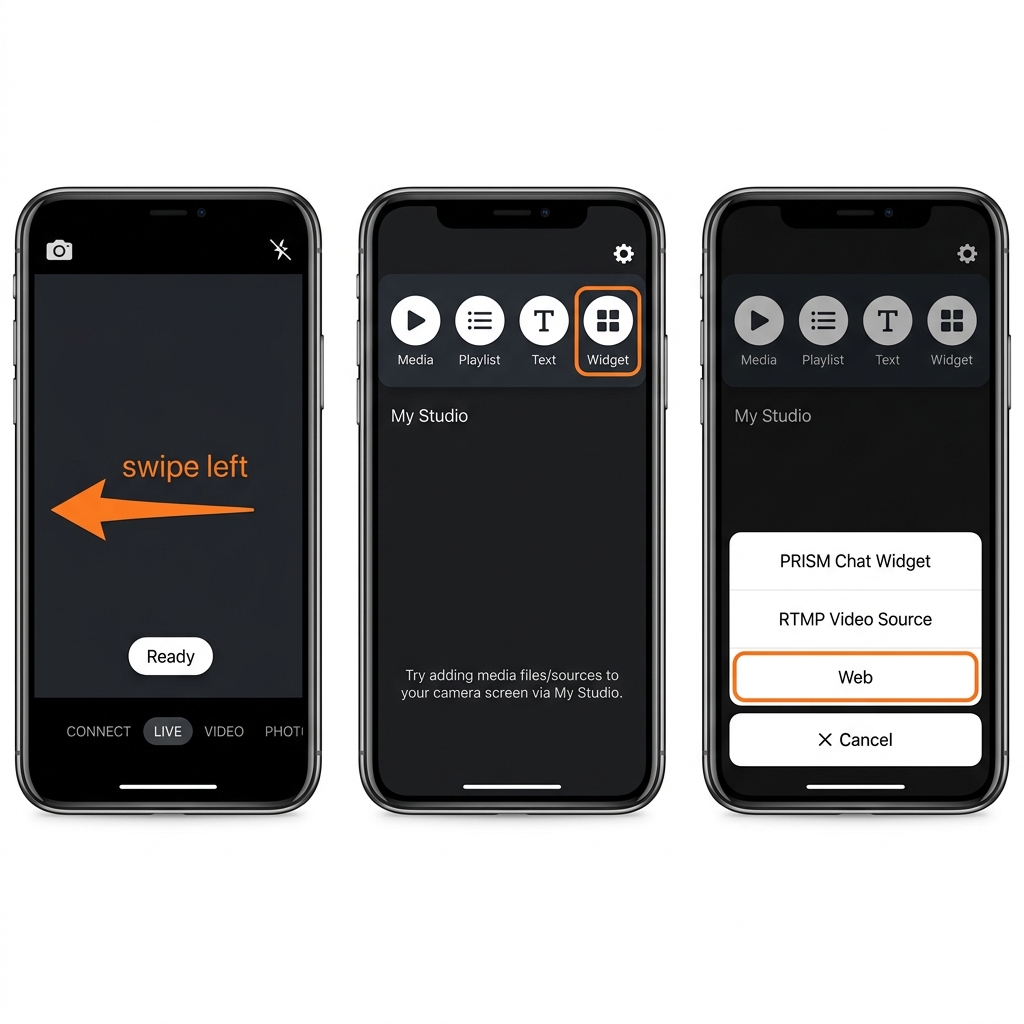
3a. Swipe to My Studio → Widget → Web #
On the main camera screen, swipe from right to left to reveal the My Studio panel. Tap the Widget icon (highlighted in orange), then select Web from the dropdown list.
3b. Paste your MyPie Overlay URL #
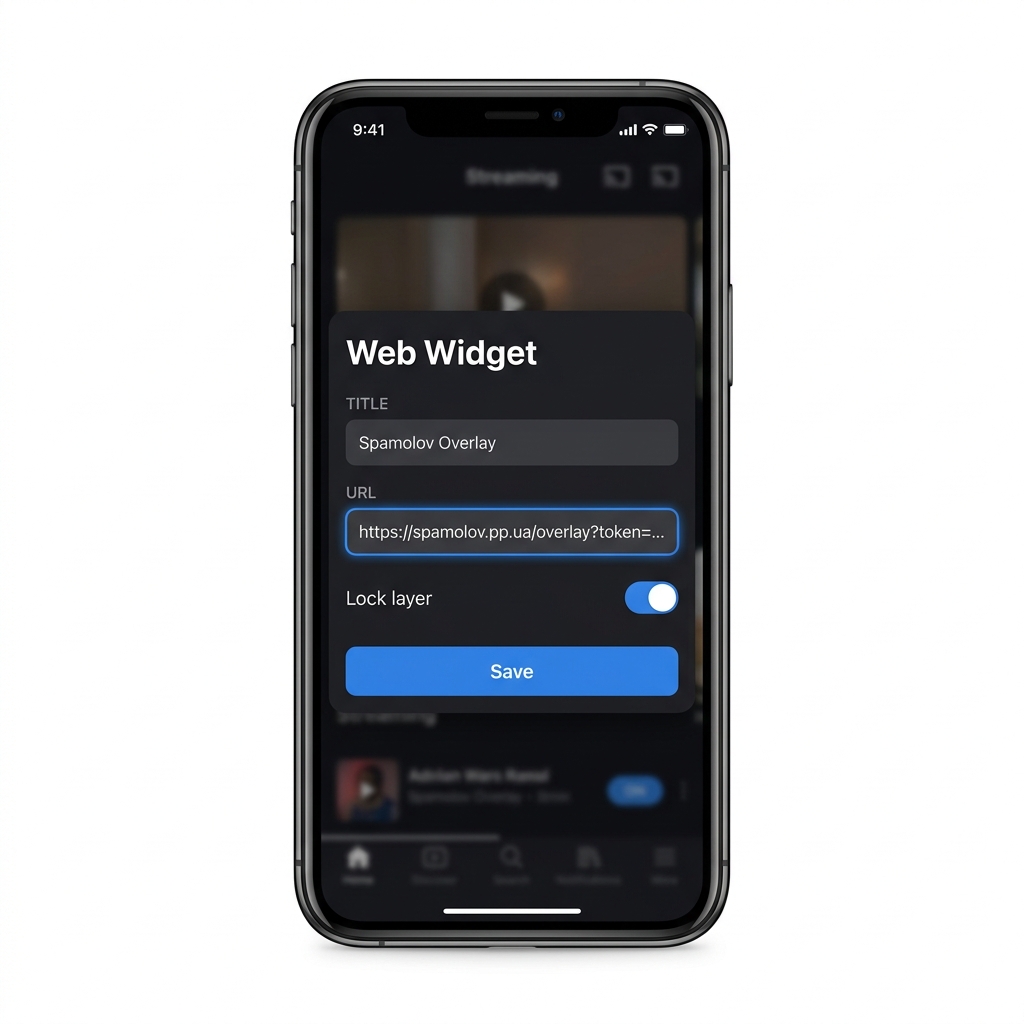
- In the URL field, paste your MyPie Overlay URL (e.g.,
https://mypie.studio/overlay?token=...). - Give it a Title like "MyPie Overlay" for easy identification.
- Enable Lock layer to prevent accidentally moving the overlay during your stream.
- Tap Save.
3c. Resize the widget to fill the screen #
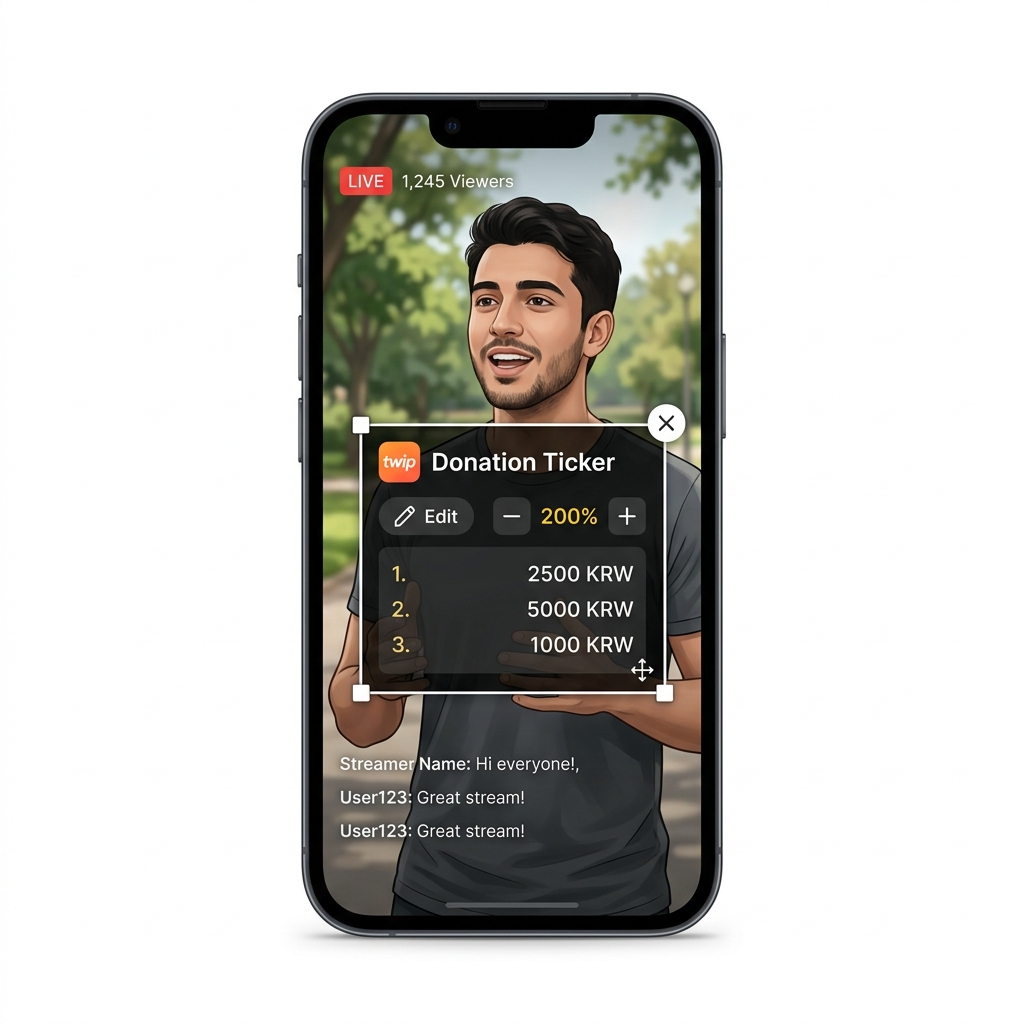
After adding the widget, it appears as a resizable box on your camera preview. Drag the corners to fill the entire screen edge-to-edge. Because your MyPie canvas matches the mobile resolution, the overlay scales perfectly without distortion.
Tips & Limitations #
- Max 4 web sources: Prism Live limits the number of web widgets to 4 to ensure stable performance across devices.
- Lock your overlay: Enable "Lock layer" once positioned to avoid accidentally moving it during a live stream.
- Re-select after restart: The widget is saved in your My Studio collection, but you may need to re-select it when starting a new session.
- Real-time updates: Any changes you Publish from your desktop will instantly appear over your camera feed — no reload needed.
📖 Official Prism Live Documentation →