📊 Ad Campaigns
Want to monetize your stream with sponsor ads? MyPie lets you schedule ad banners in your overlay, track every impression with real Twitch data, and send your sponsor a clean report — no spreadsheets, no guesswork.
🤝 Important to know: MyPie doesn't find sponsors for you — you handle that part. What we do is give you a reliable, professional way to deliver on sponsor deals you've already made. Set up the ad, let us track every impression with verified Twitch data, and share a clean report your sponsor can trust.
🎯 How It Works #
The idea is simple: you create a folder in your overlay, mark it as an "Ad Folder", and MyPie takes care of the rest.
- Create an Ad Folder in the studio editor and put your sponsor's banner inside it.
- Set a schedule — how often the ad should appear and how long it stays on screen.
- Stream as usual. Every time the ad shows up, MyPie logs an impression and pulls your current Twitch stats (viewers, category, stream title).
- Share the report with your sponsor — they get a professional page with all the data, no login needed.
🛠️ Setting Up Your First Campaign #
Step 1: Create an Ad Folder #
- Open your Studio Editor
- Click + Folder in the top toolbar
- Select the new folder in the Layers panel
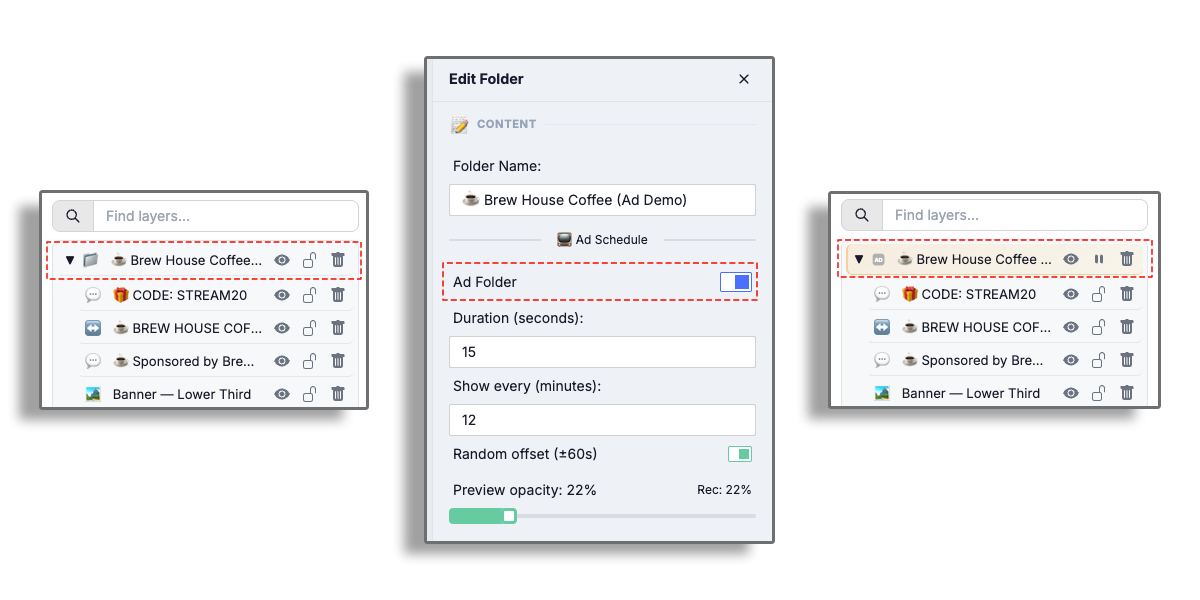
- In the Object Editor on the right, turn on the Ad Schedule toggle
- Give it a clear name — something like "BrandX Banner" so you can find it later
Step 2: Configure the Schedule #
Once Ad Schedule is enabled, you'll see two settings:
- Interval — How often the ad appears (e.g., every 15 minutes)
- Duration — How long it stays visible (e.g., 30 seconds)
The overlay handles the timing automatically once you publish.
Step 3: Add Your Sponsor's Content #
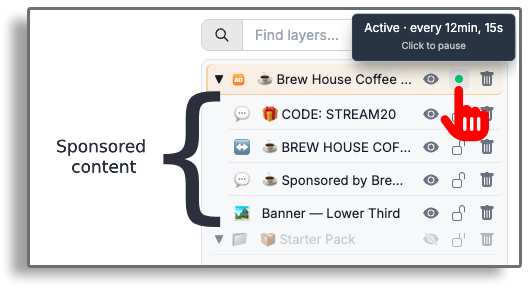
Drop your sponsor's assets inside the Ad Folder — images, logos, animated WebMs, text overlays, whatever they need. Everything inside the folder will show and hide together on schedule.
Don't forget to Publish when you're done!
📈 What Gets Tracked #
Every time the ad appears on your live stream, MyPie records:
- Timestamp — Exactly when the ad was shown
- Duration — How long it was visible
- Viewer count — How many people were watching at that moment
- Category — What you were streaming (e.g., "Valorant", "Just Chatting")
- Stream title — Your stream title at the time
All of this is pulled directly from the Twitch API in real time.
🖥️ Viewing Your Analytics #
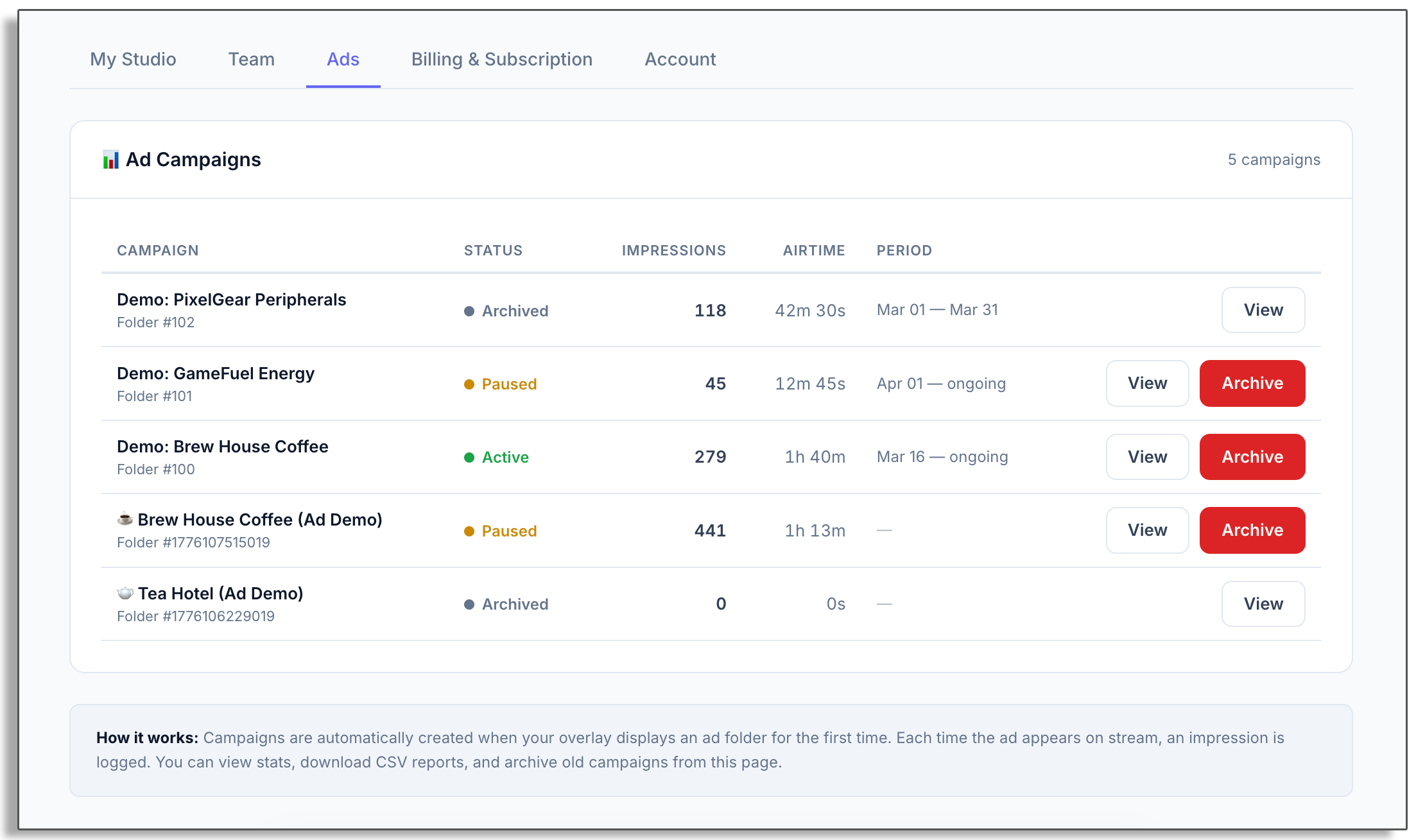
Head to Dashboard → Ads to see all your campaigns. Click into any campaign to get the full picture:
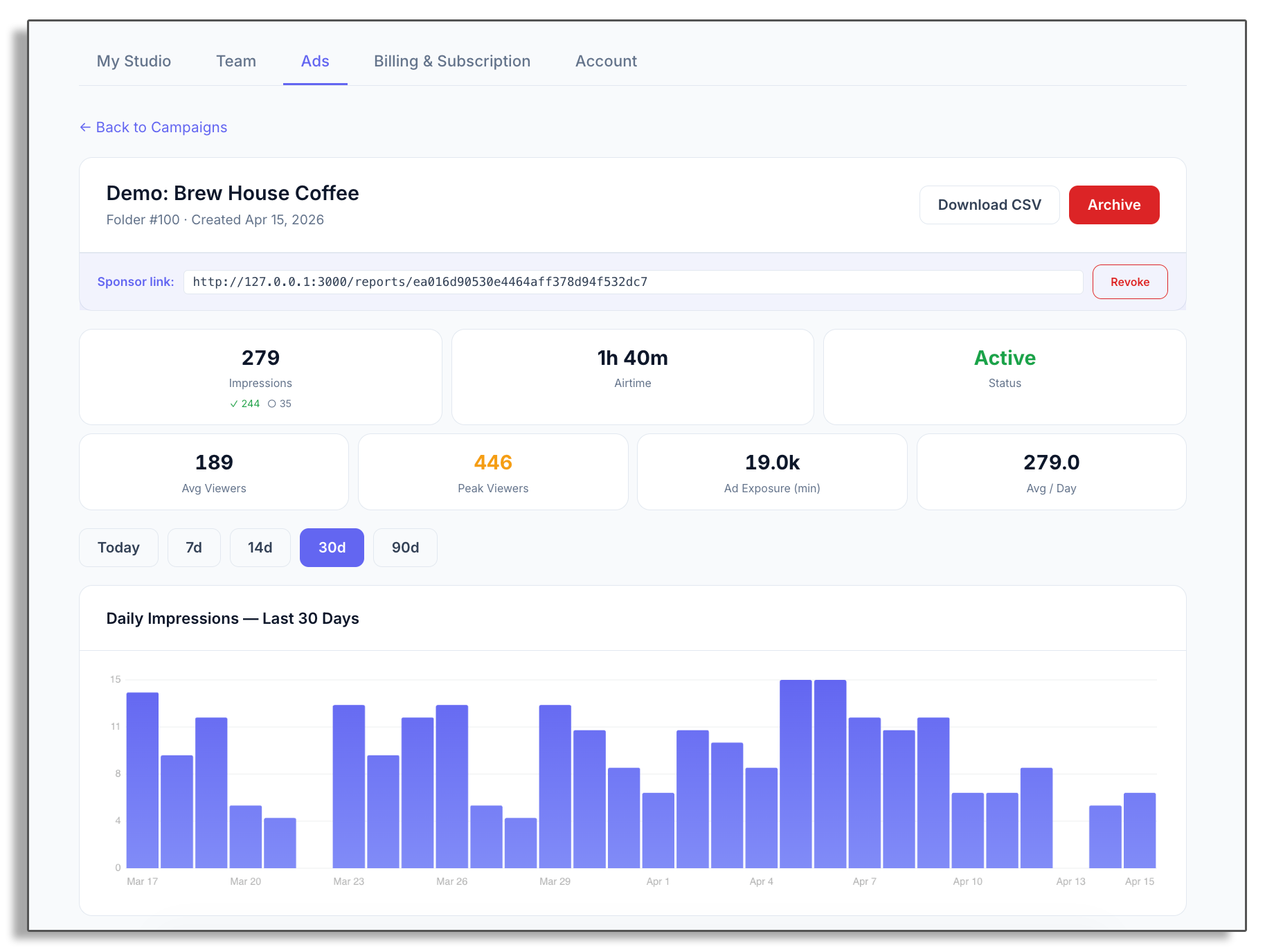
- Total impressions — How many times the ad was shown
- Airtime — Total time your ad was on screen
- Avg / Peak viewers — Viewer stats across all impressions
- Ad Exposure — Total reach in viewer-minutes
- Daily chart — Visual breakdown of impressions over time
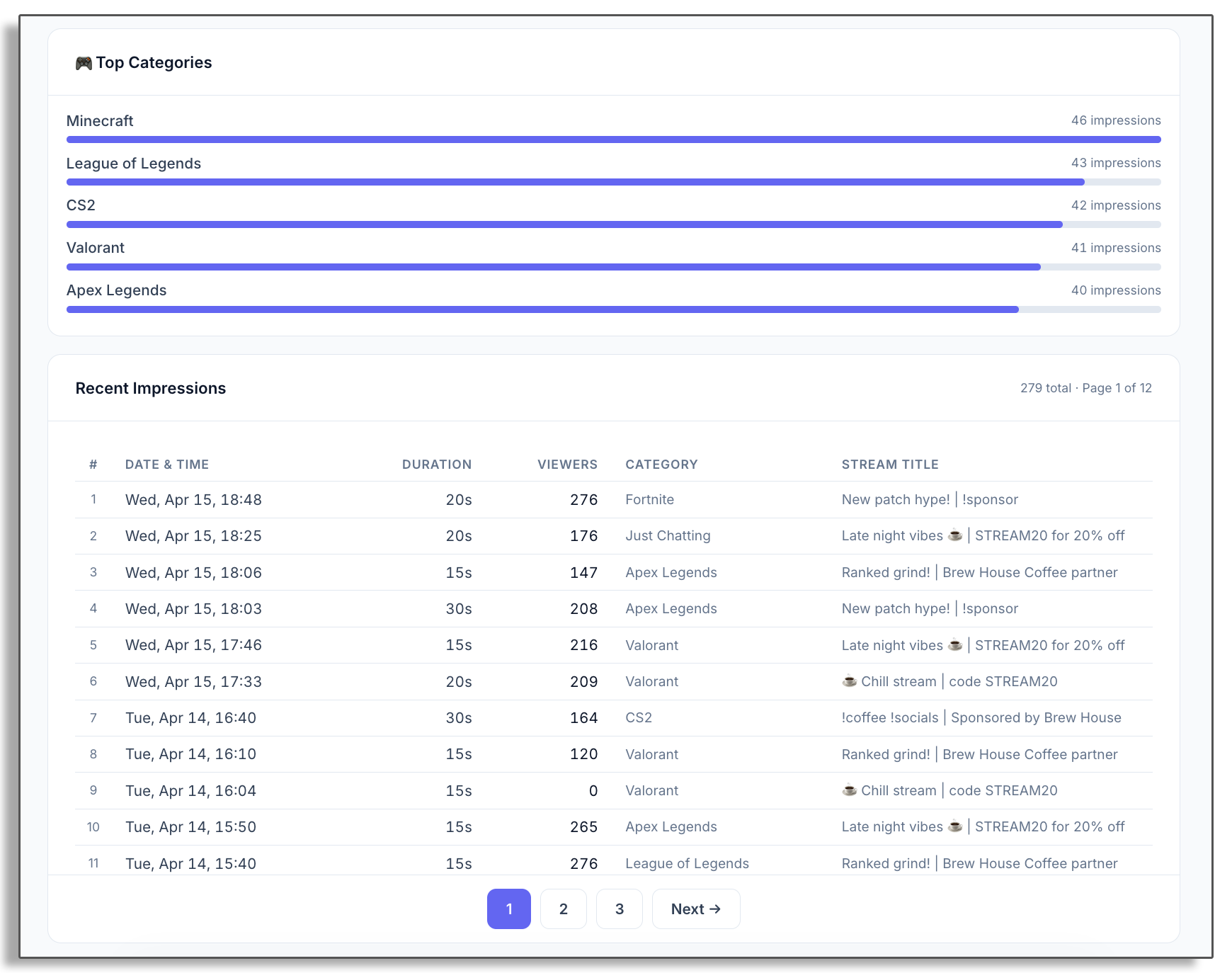
- Impression log — Every ad display with full details
🔗 Sharing Reports with Sponsors #
The Share Link #
Every campaign gets a unique public link you can send to your sponsor. They'll see a professional report page with:
- Key metrics at the top
- A daily impressions chart
- The full impression log
No login, no sign-up — just send the link and they're in.
Only verified impressions appear in the report. Each impression is confirmed by the Twitch API with a real viewer count. If Twitch can't confirm you were live, the impression won't appear in the report.
CSV Export #
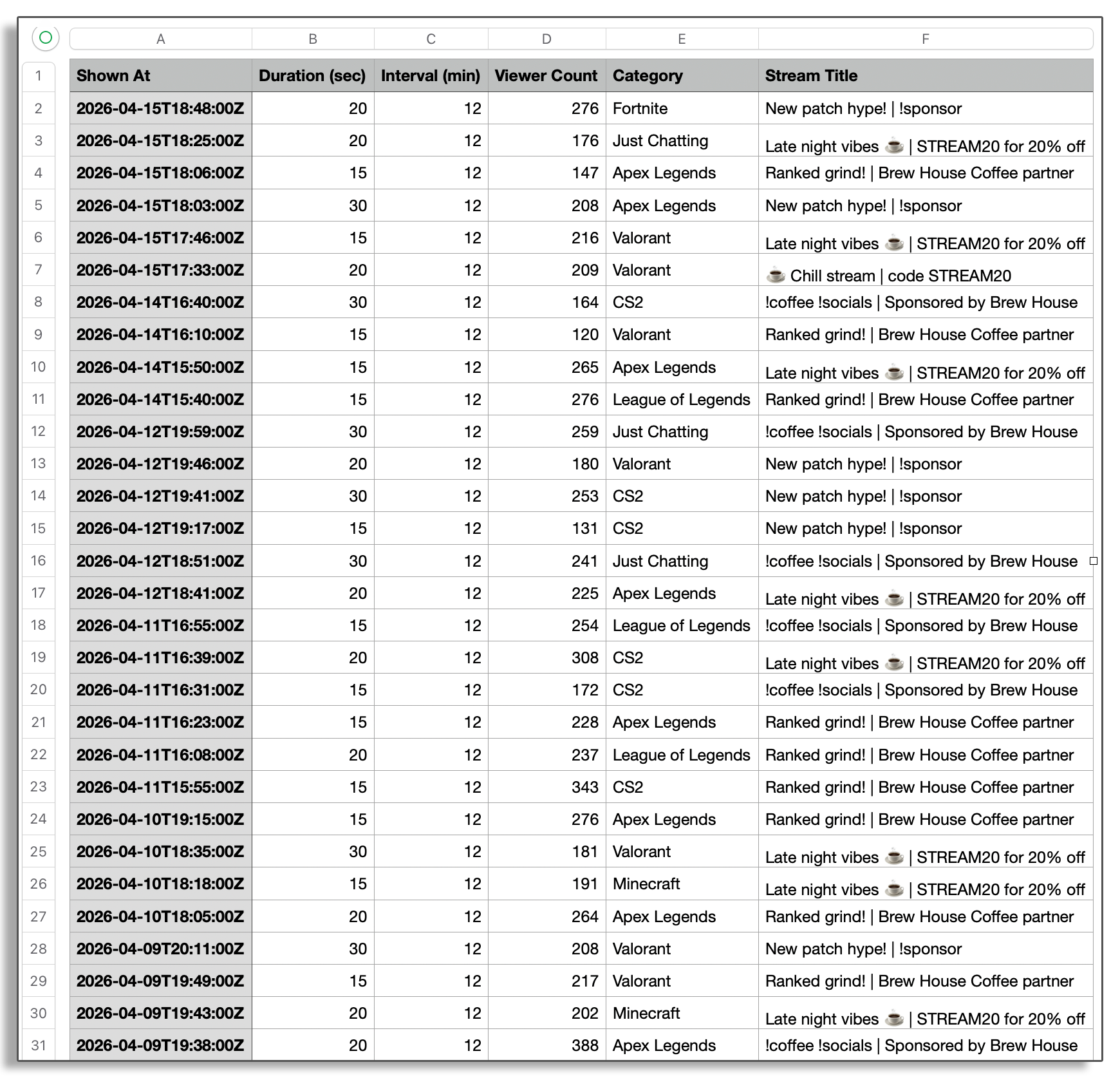
Need the raw data? Download everything as a CSV file. Each row has the timestamp, duration, viewer count, category, and stream title — perfect for invoices, custom reports, or just keeping records.
The download button is on the campaign detail page.
❓ Common Questions #
Can the data be faked?
No. Impressions are sent from your live overlay to MyPie's server, which independently verifies your stream status via the Twitch API. If you're not live, nothing gets recorded. Viewer count and category come straight from Twitch.
Can I run multiple campaigns at once?
Yes. Each Ad Folder becomes its own campaign with separate analytics and its own share link. Run as many as you want.
Does the ad need to cover the whole screen?
No. You can make the ad folder any size — a small logo in the corner, a banner at the bottom, or a full-screen takeover. Position and size it however you want in the studio editor.
What if I want to pause a campaign?
Click the pause button (⏸) on the Ad Folder in your layers panel — this stops the scheduler without removing anything. You can also hide the folder (eye icon), which will automatically pause the scheduler too. To stop tracking entirely, archive the campaign from the dashboard.